
We allow headstone photos taken outside of the app to be submitted to the website. These are called BillionGraves Headstone Records.
- Images taken outside of the app do not have GPS marking; however, these are sent to the transcription queue, just as if they were taken with the app and can be transcribed by users on the website.
From the Dashboard:
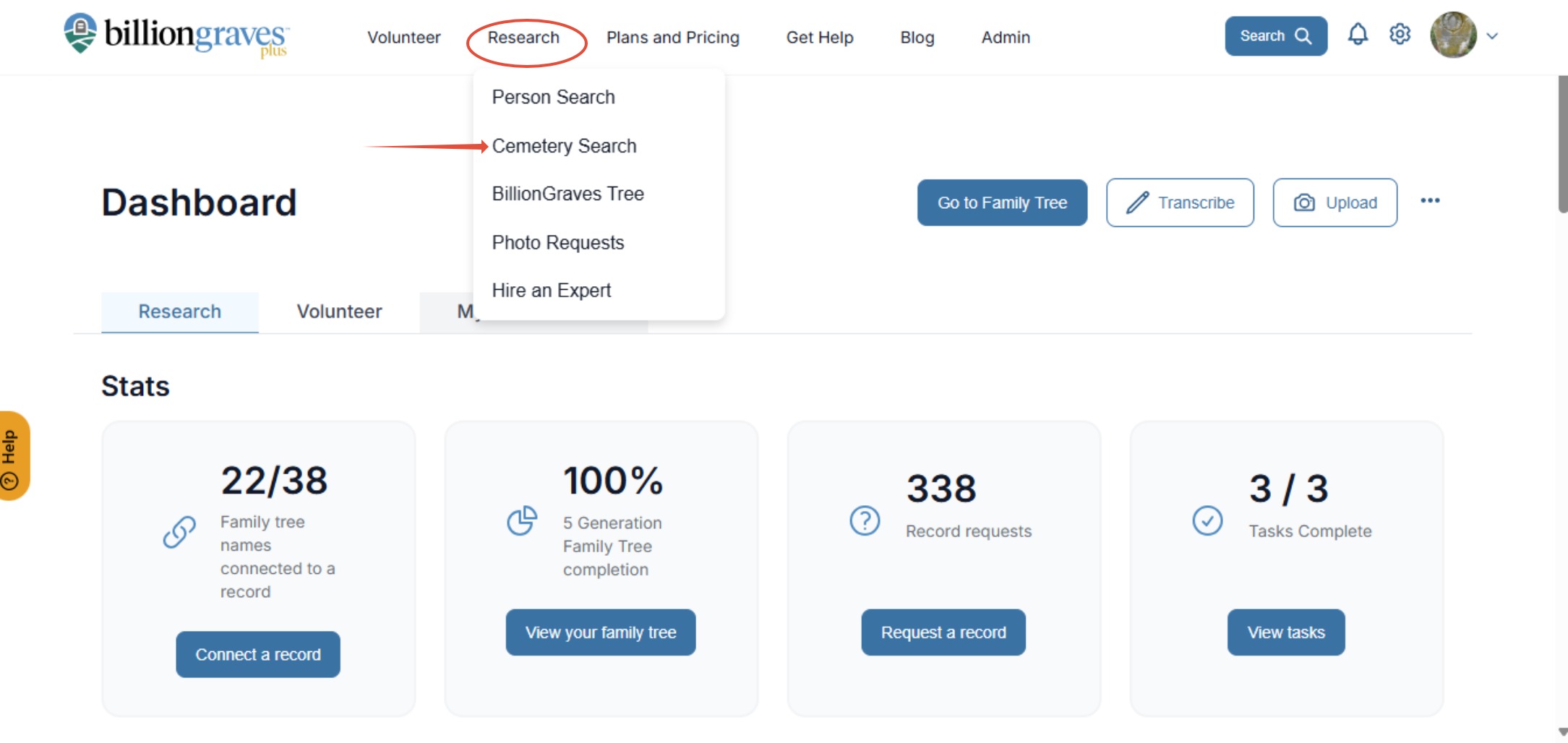
Step 1: Click on the Research tab at the top of the page. Choose the Cemetery Search dropdown.
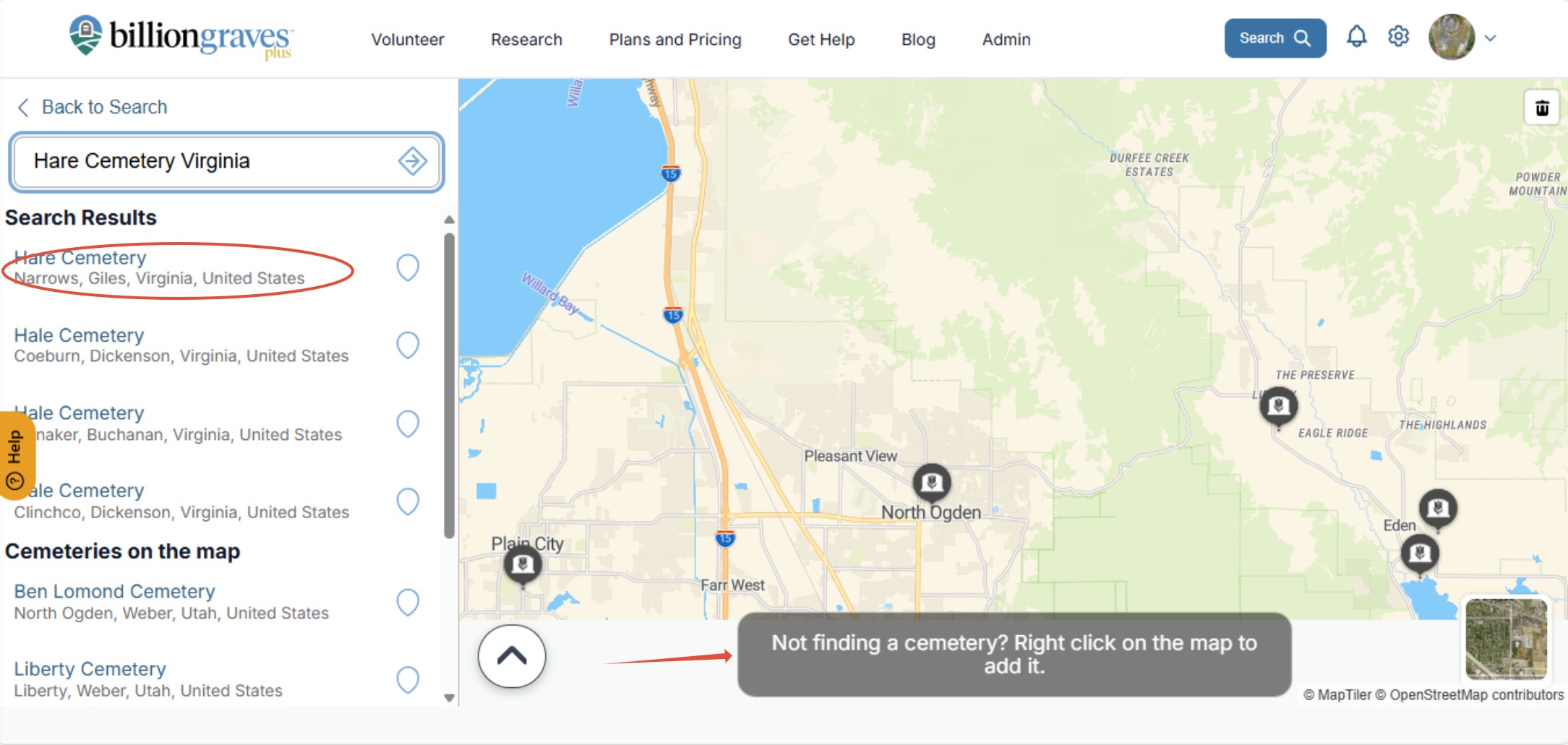
Step 2: Find the cemetery the photos belong in by entering the name and location. When the correct cemetery displays in search results click on it.
(If the cemetery isn't found in the search results, find the cemetery location on the map. Right click on the map to add it to the database. The cemetery will need to be approved by our staff before it can be viewed by the public.)
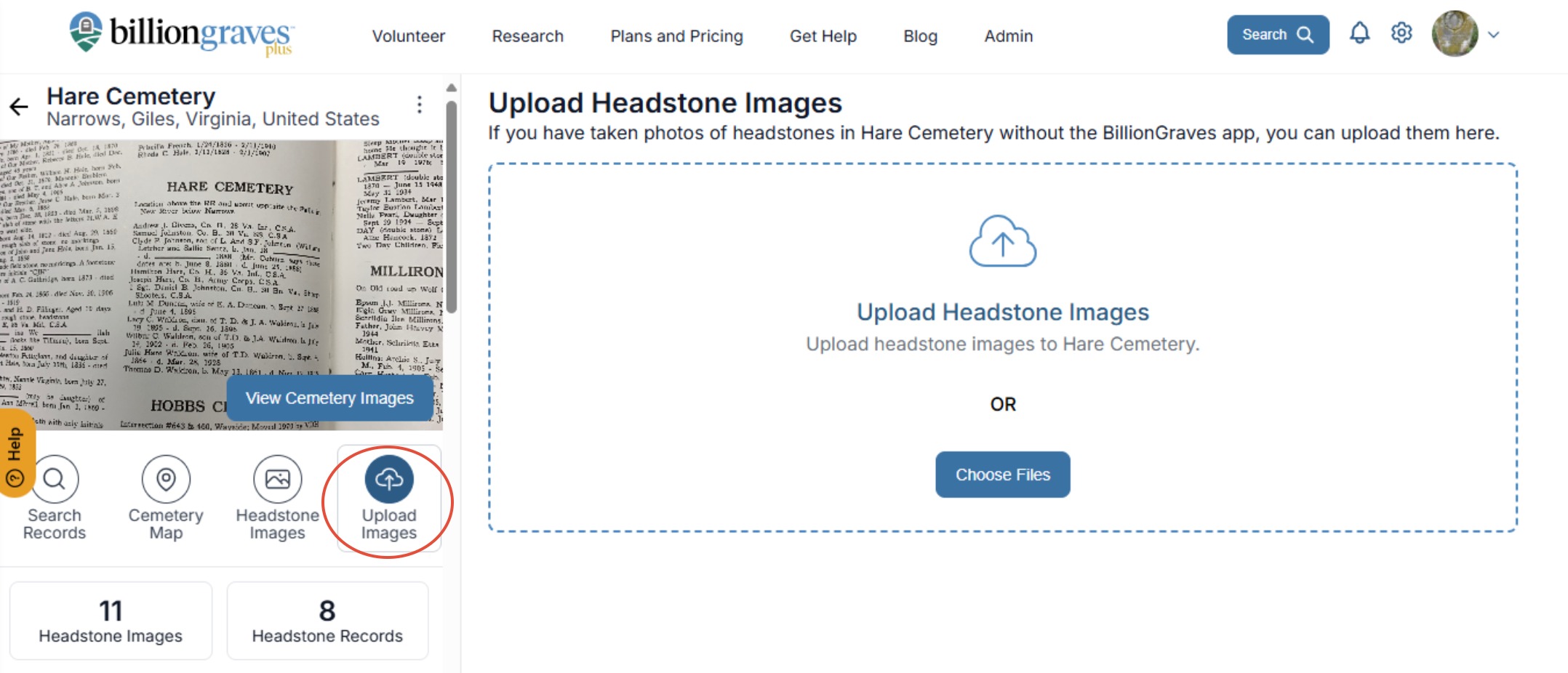
Step 3: Click on the upload images button.
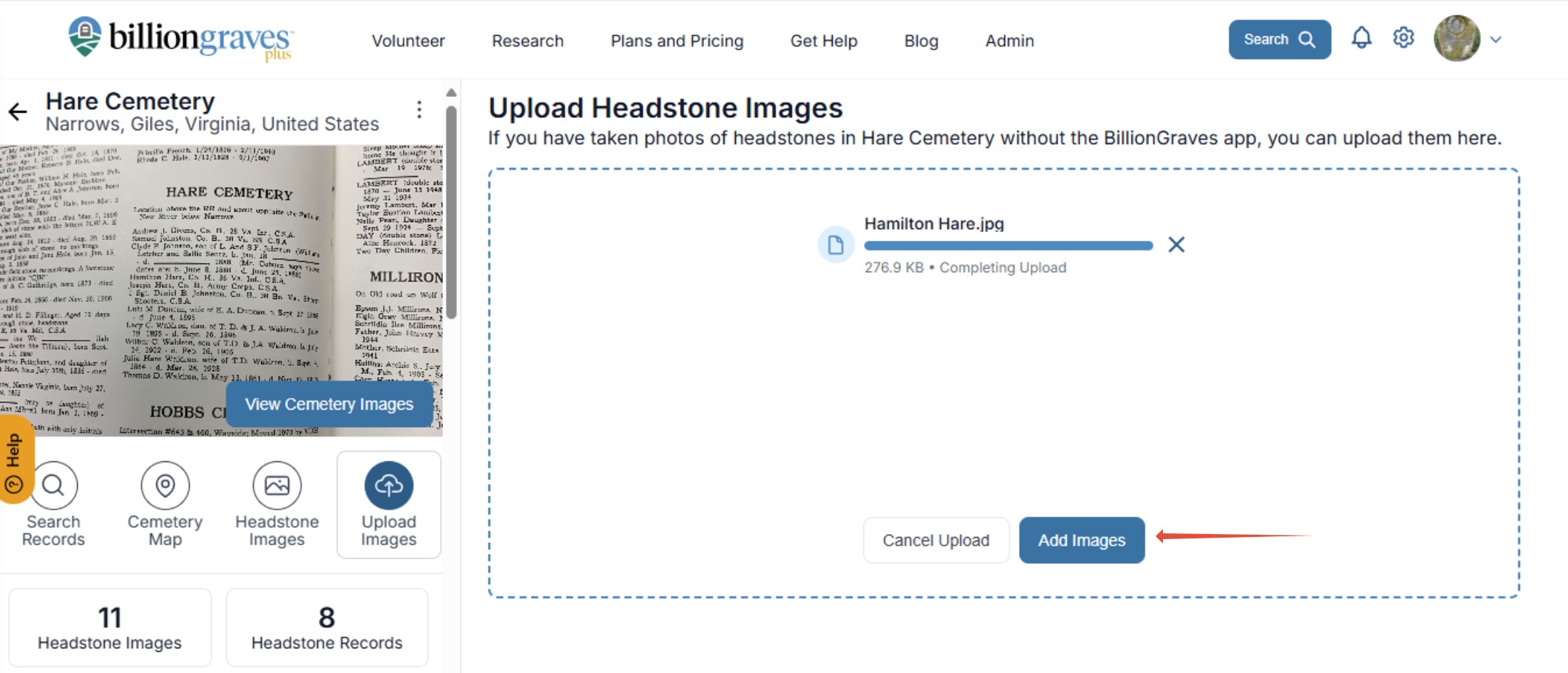
Step 4: Photos can either be dropped into the box or click on the "choose files" button to upload them from a file on your computer. Multiple images can be added by clicking on "add images" after each upload.
Step 5: Click on the "Headstone Images" tab. Click on the photo uploaded in the headstone images album. 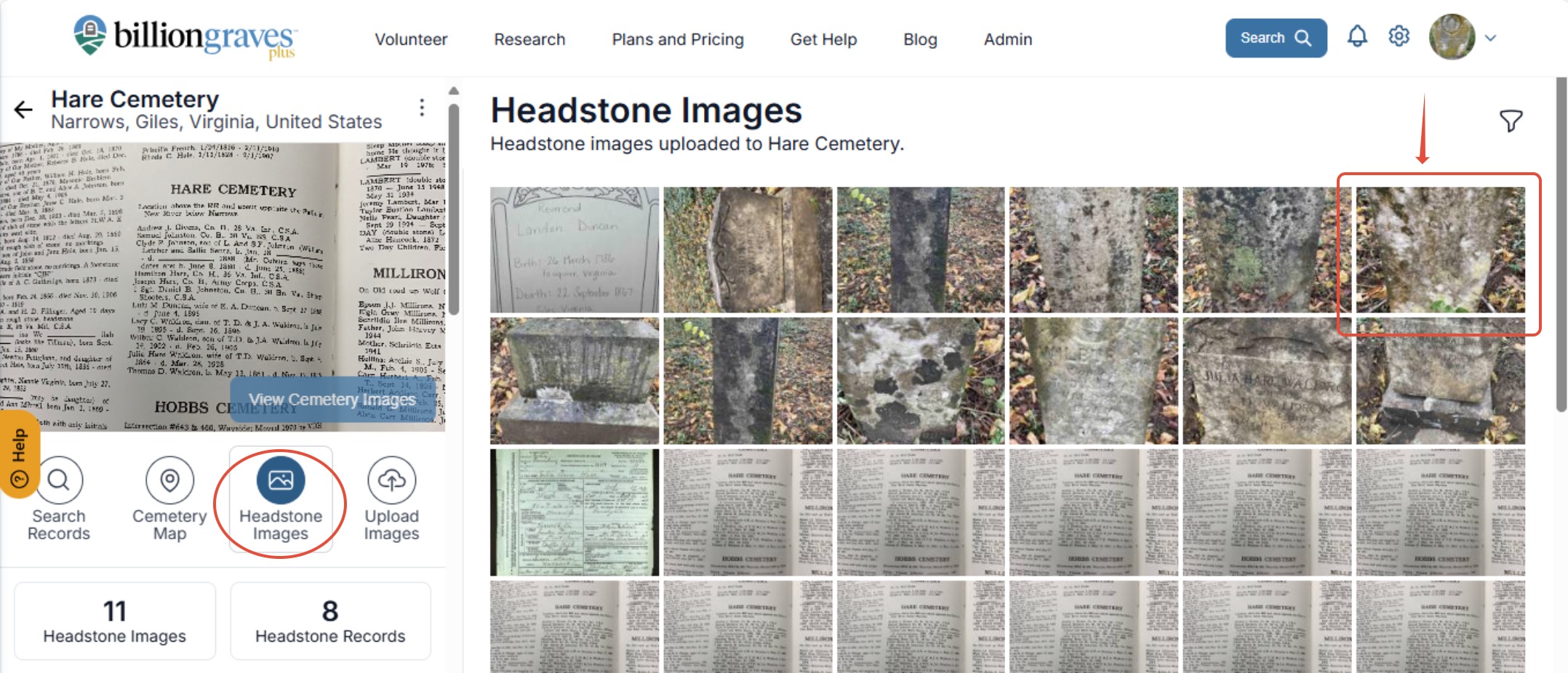
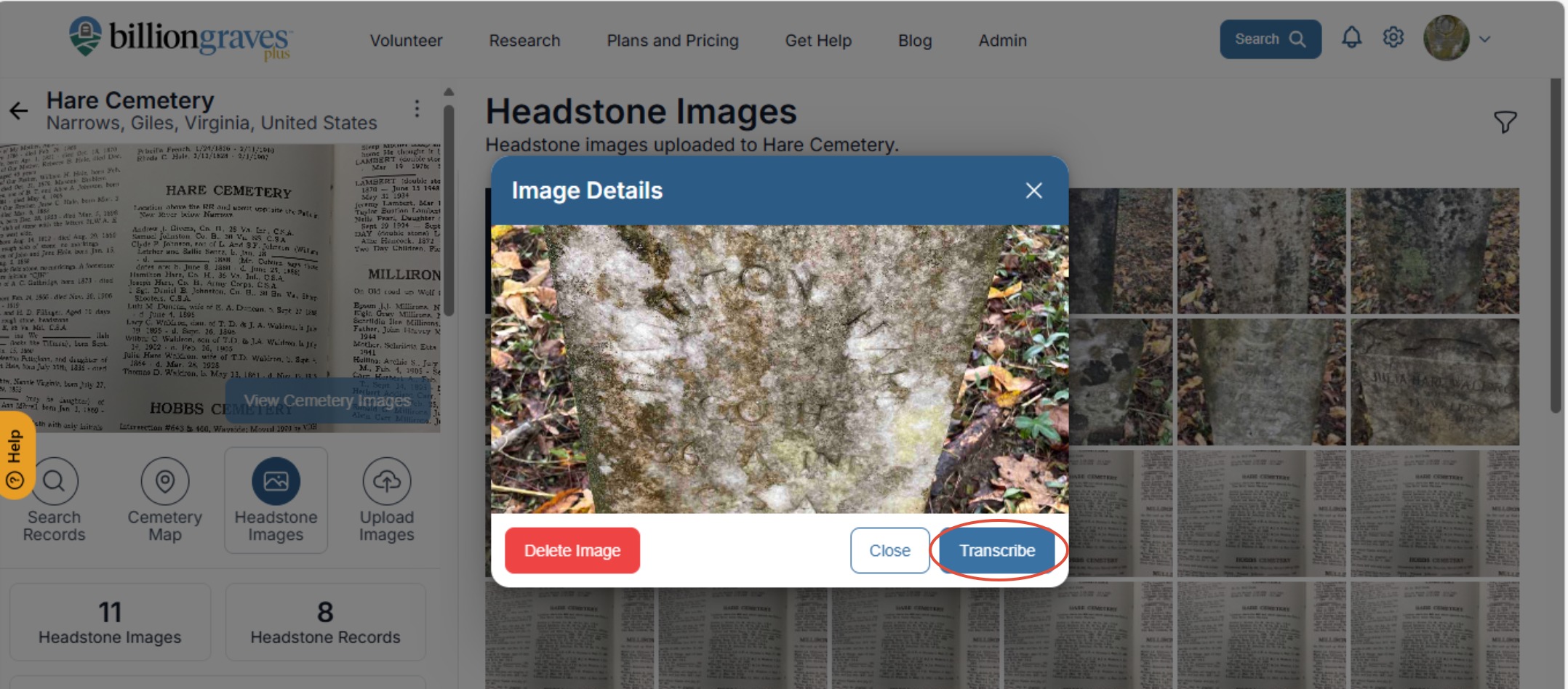
Step 6: Click on the "transcribe" button to transcribe the image.
Step 7: Transcribe the image, and click "Save Person" at the bottom of the form.
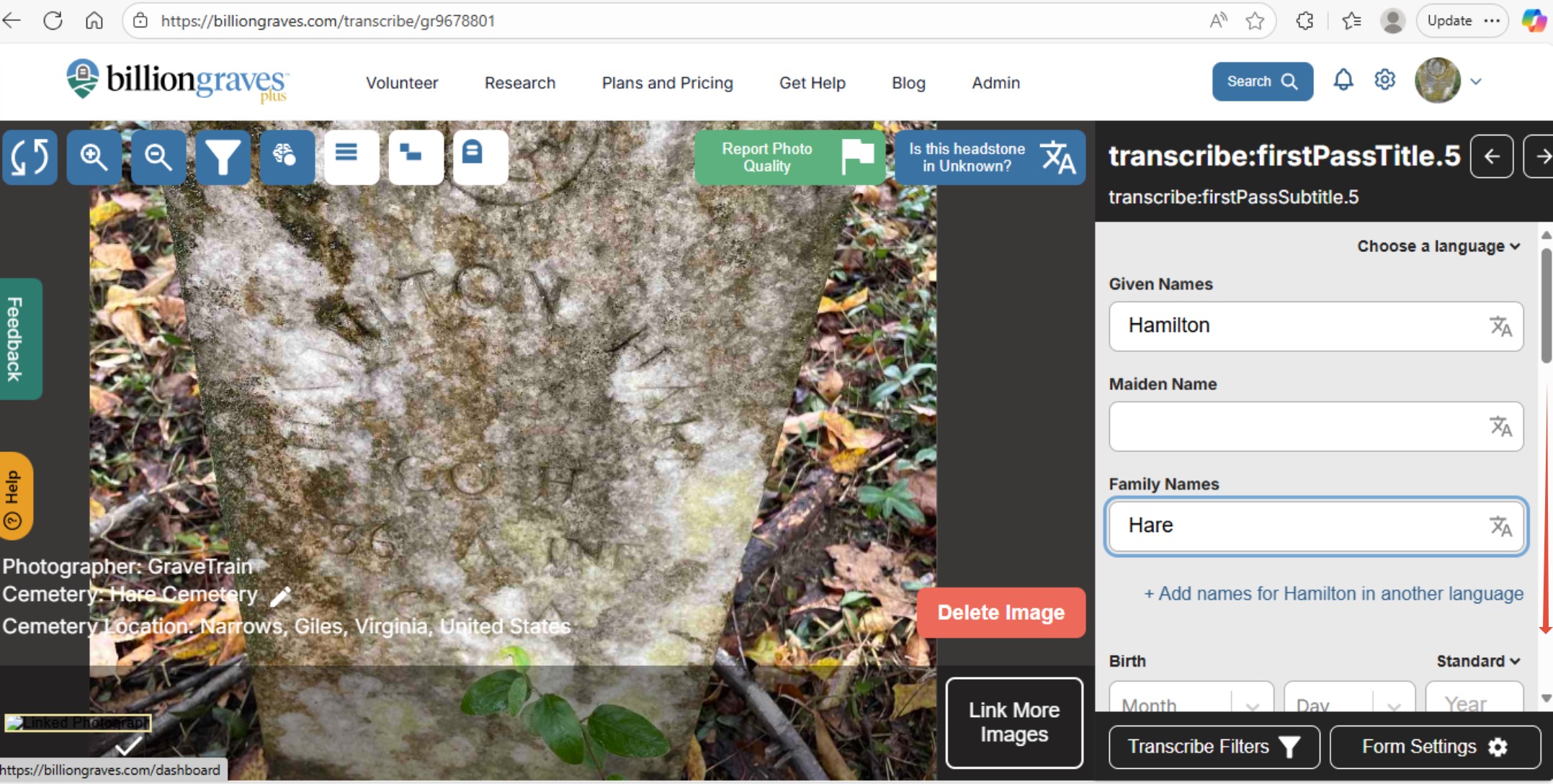
Step 8: For additional photos, repeat steps 5-8.
Do you need extra help? Click HERE to create a ticket.