
If you have visited a cemetery and know you have some images missing, there may be a few reasons why.
Reason 1: Check to be sure all of your images have uploaded from the app. If they have not, they can be re-uploaded by clicking on photos, choosing the cemetery, clicking edit, selecting the photos you want to re-upload, and click re-upload. Photos that have been uploaded will have a date on them. Those that do not have a date have not uploaded properly.
Reason 2: Not all images are approved right away. If the BillionGraves system identifies a glitch of any kind, the photos will need to be approved manually by staff members one at a time. This can sometimes take a few days. You are welcome to send us a kind note and inquire as to whether or not we have gone through the image approval process that day. Typically this may take 5-7 business days.
Reason 3: Sometimes well-meaning users will red-flag images that are challenging to read. If your image is red-flagged and marked as blurred, unreadable, not a headstone, or no information to transcribe, it will go into a file in your account. This can be changed!
Here is how to address this issue.
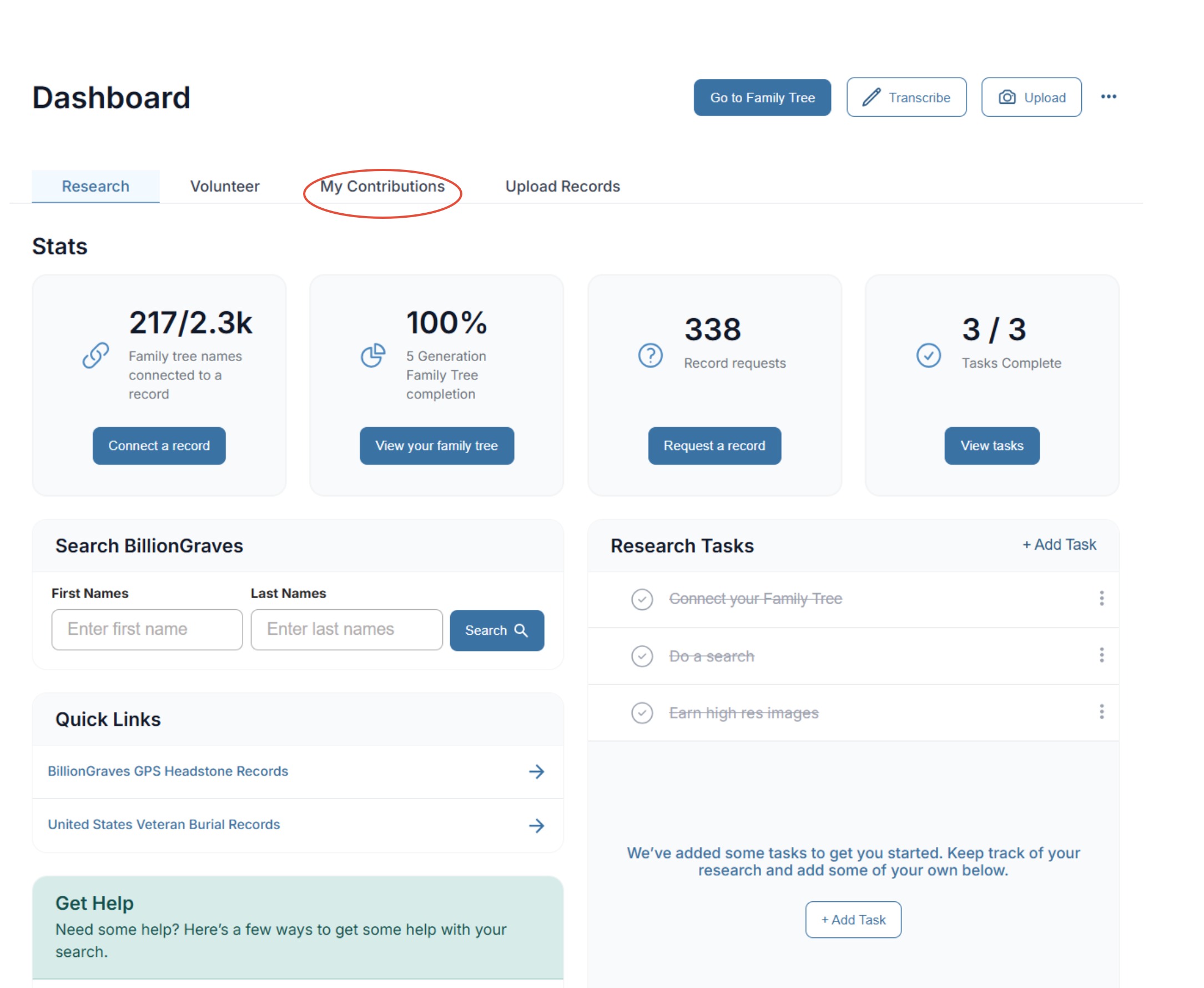
Step 1: Go to your dashboard on the home page. Click on the "My Contributions" tab.
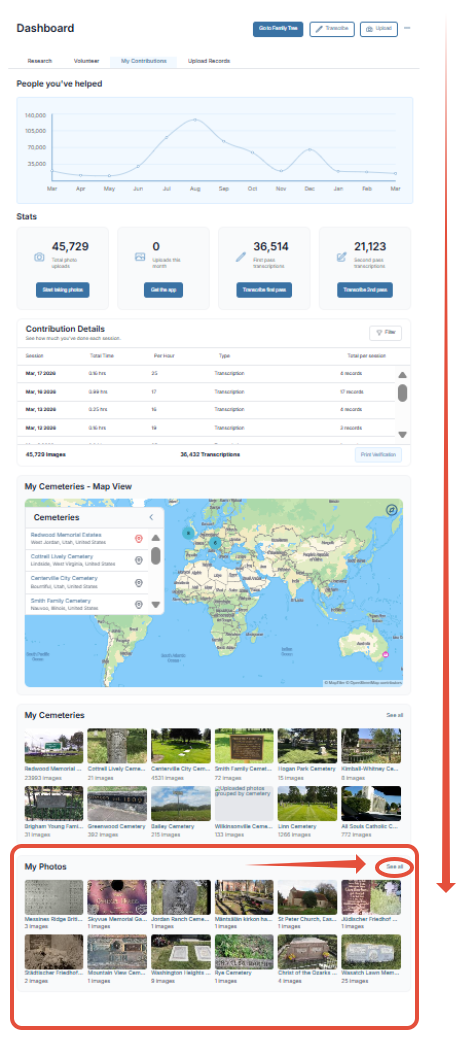
Step 2: Scroll down to My Photos and click on See All.
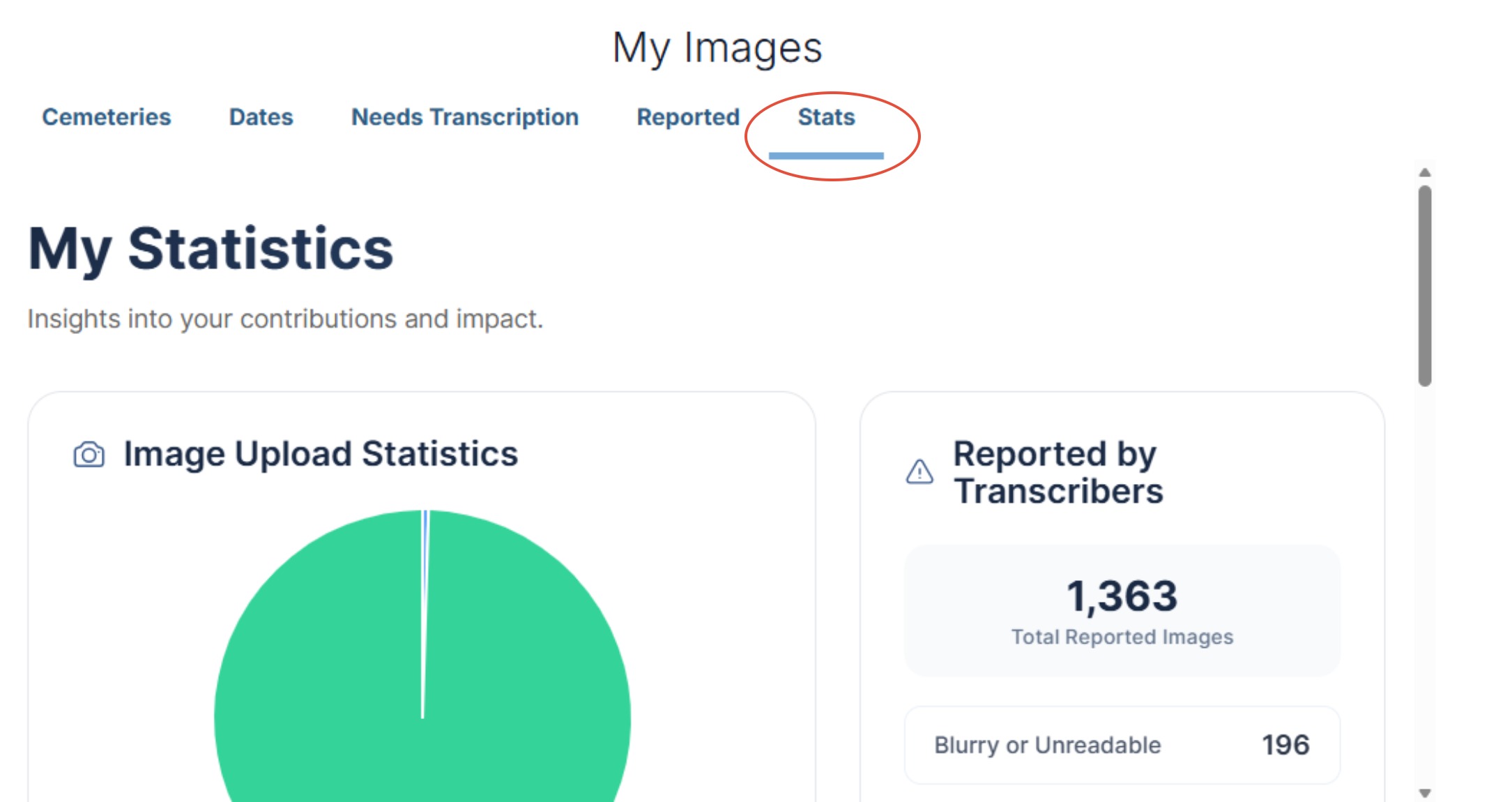
Step 3: Click on Stats. This will take you to your statistics page.
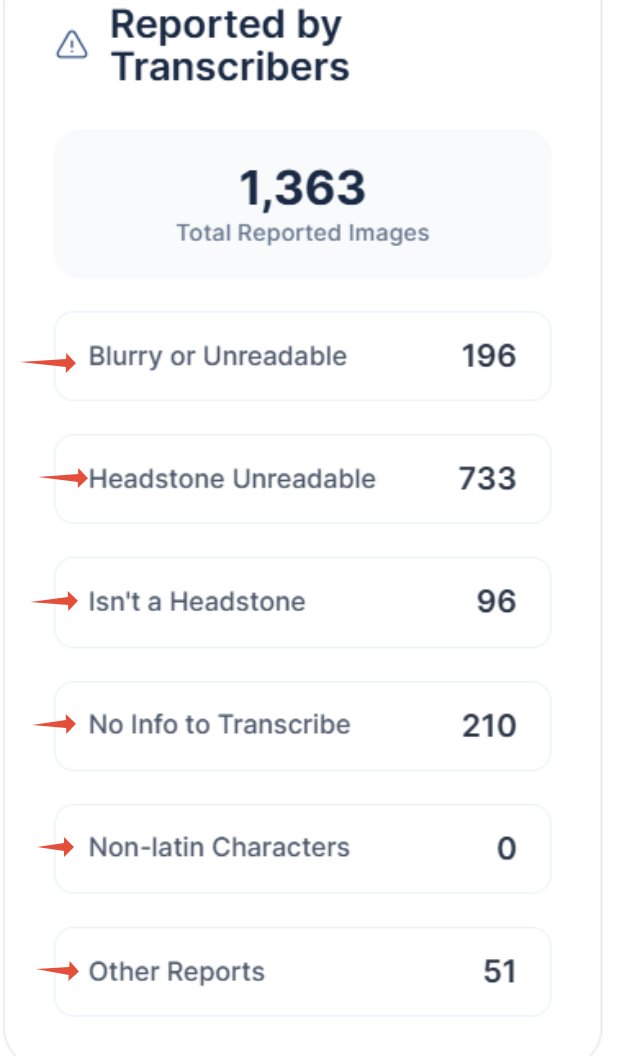
Step 4: Click on any of the areas reported by transcribers.
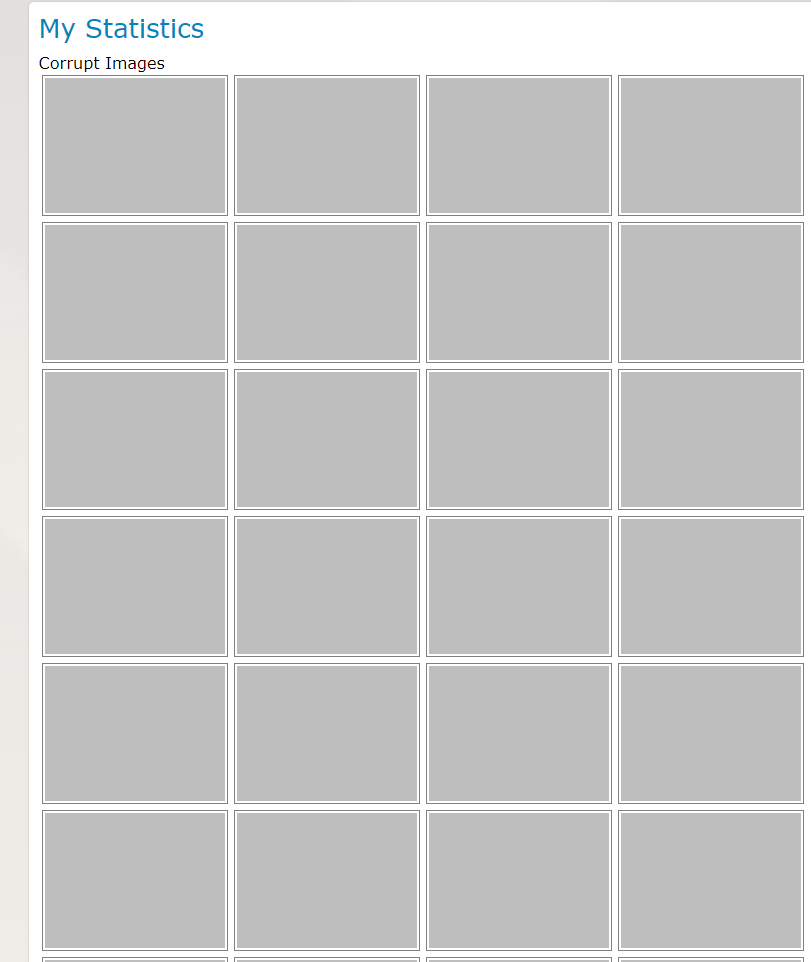
Step 5: Choose Corrupt Images. Corrupt images can happen when the phone runs out of memory. The photos will not save, but a place holder is saved where the photo should be. The only way to get rid of these is to remove them one at a time. Right-click on one of these and choose delete, or if there are over 50 of these, you can send in a request to support to have these deleted from your account.
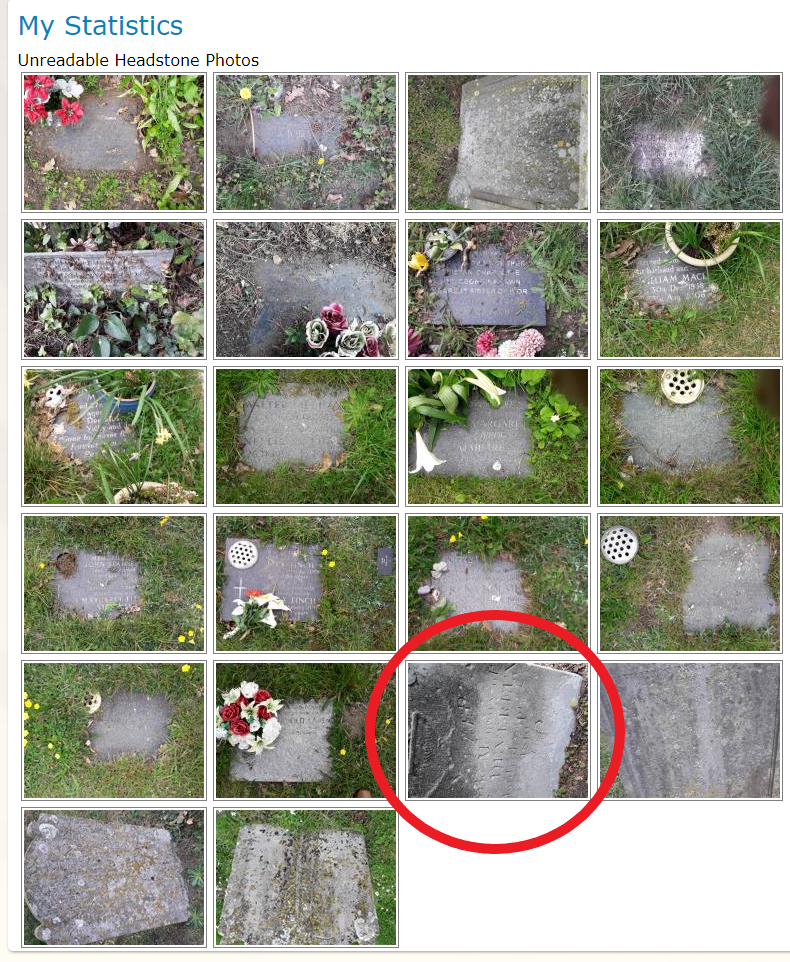
Step 6: Going back to the statistic page, Choose The Headstone is Unreadable. (Transcribers try to be helpful, but I see a few of these that are very readable, so I click on one of these.)
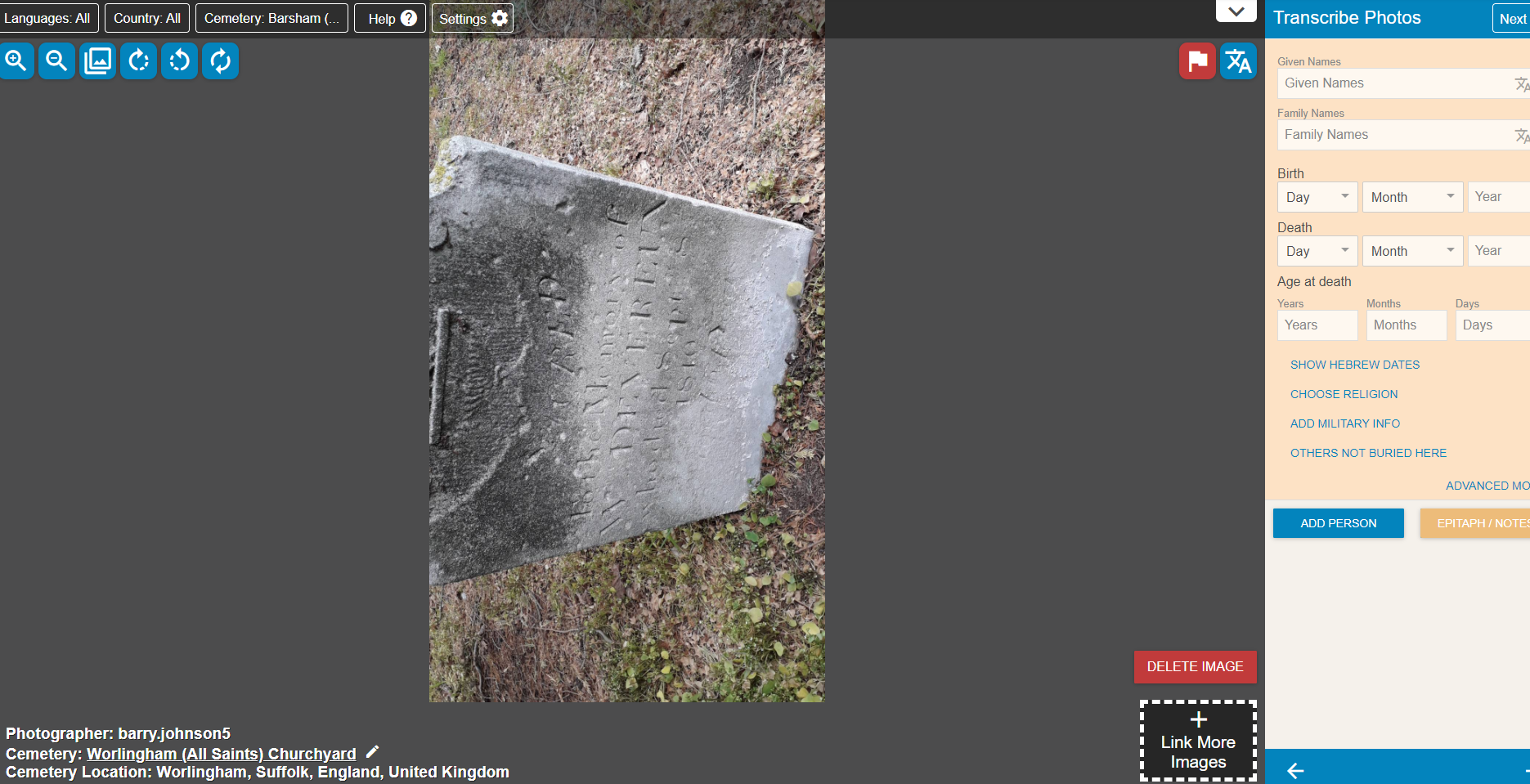
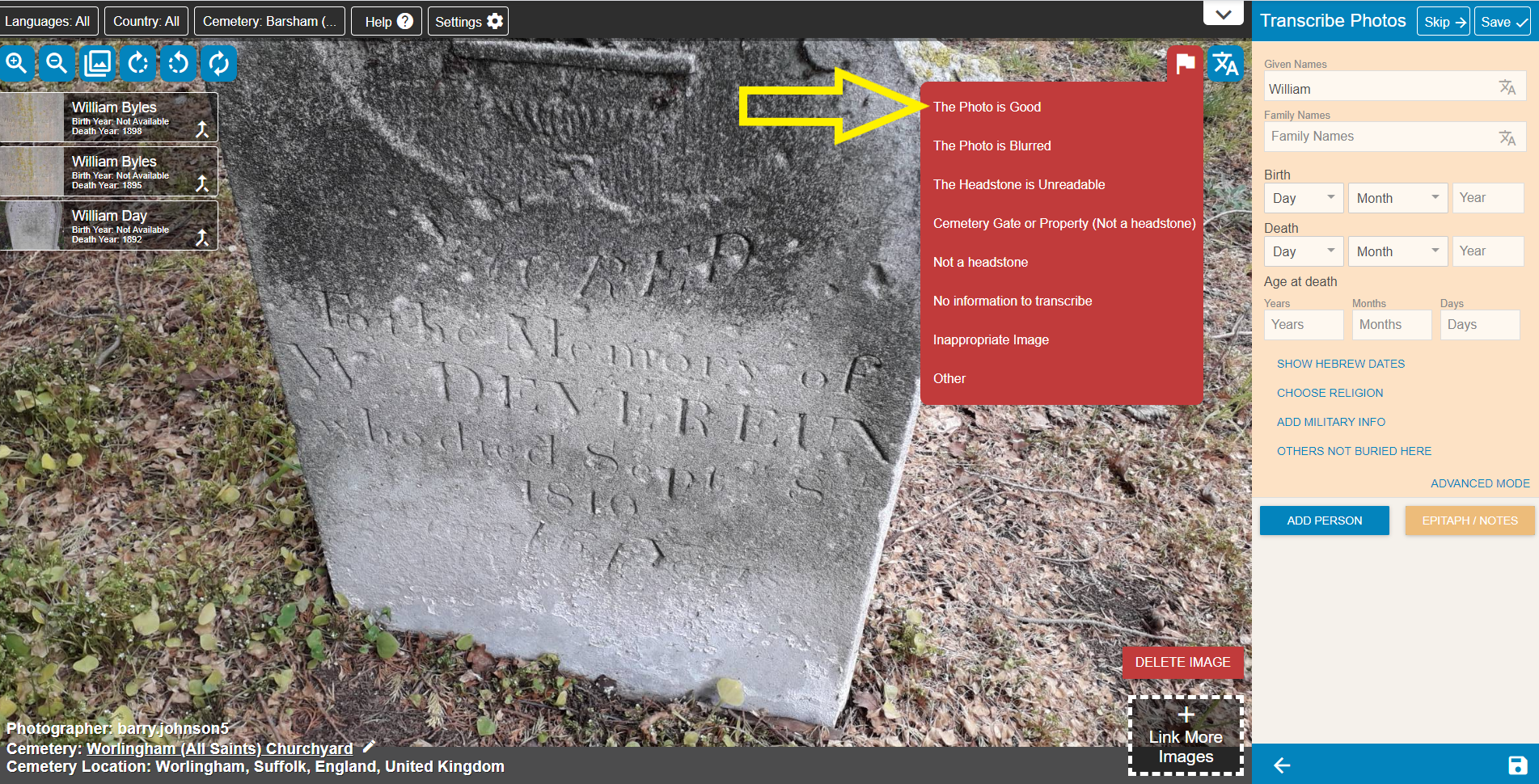
Step 7: -When the image is clicked on, the photo is sent to the transcription queue. Click rotate. Indeed, this is very readable. Click on the red flag and choose The Photo is Good. This removes the photo from reported images file.
Step 8: Go back to My Statistics page. You will see that the statistics will change on the page. You can continue to fix these images on this page so that you will have no more reported images.
Do you need help? Click HERE to create a ticket. This will get sent to our help desk staff.