Use this method to bypass the automatic transcription queue to transcribe the photos you have taken with the app. This method allows you to choose which stones you would like to transcribe in your account.
What is transcribing?
What is transcribing? It is recording the names, dates, and other information from each gravestone image onto a form on the BillionGraves website.
For more detailed information about transcribing, click HERE.
The Option to Transcribe Your Photos In Your Personal Account
After you have taken photos at a cemetery and you then click the "upload" button on your smartphone or tablet, a pop-up will appear to ask if you would like to transcribe your own photos. If you want to transcribe your photos, tap YES.
If you choose this option, you will have 14 days to complete the task before your pictures will go to the general public for anyone to transcribe.
After forty-five days, if you live in some areas (US), our computer program will take over the transcription process of any photos left in a cemetery untranscribed after 45 days.
If you do not want to transcribe your photos, then when the pop-up appears during upload, tap NO. The photos will be released to the general public to transcribe. If you live in some areas (US) our computer program will begin transcribing the photos immediately.
Our technical staff has made great strides to ensure that you can transcribe the photos taken with your device. These can either be an automatic transcription method which is the default or a manual transcription method depending on how you would like to do these.
After your photos are uploaded from the app, to manually choose which photos to transcribe do the following:
Step 1: Log in to BillionGraves.com.
Step 2: Click on My Contributions tab:
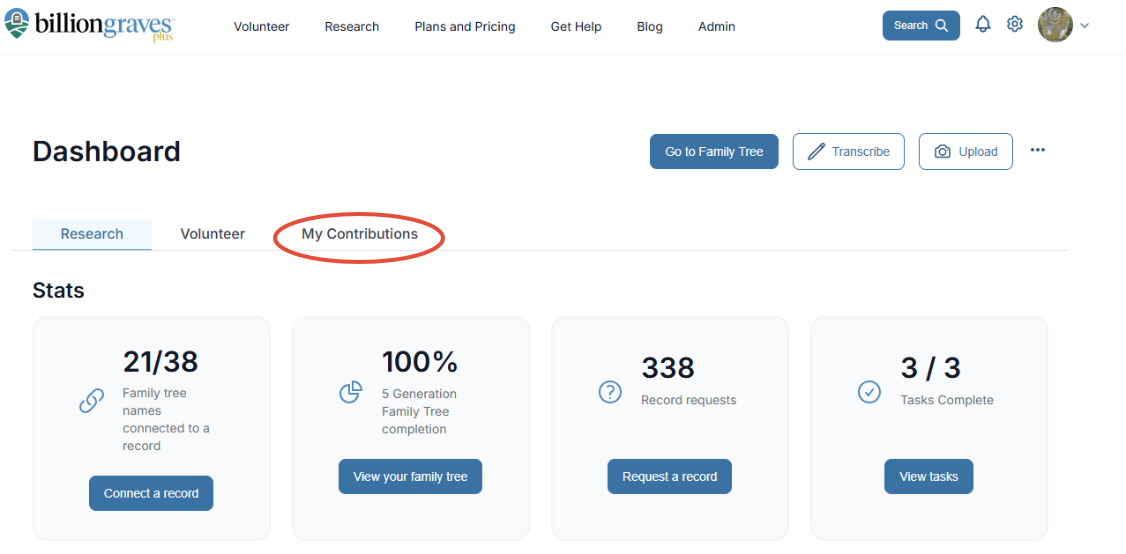
Step 3: Scroll down to the bottom to the "My Photos" section.
Step 4: Click on the cemetery that you would like to view or click on see all to get a complete list.
My Images
You will then be taken to the "My Images" page. From here, you can choose the list of cemeteries you have taken photos in, the dates you have photographed cemeteries, photos that need transcription, or photos that you have taken that have been reported. You can also view your stats.
Step 5: From these pages, you can hover over the left side of each photo and a circle with a check mark will appear on the left-left hand side of the photo.
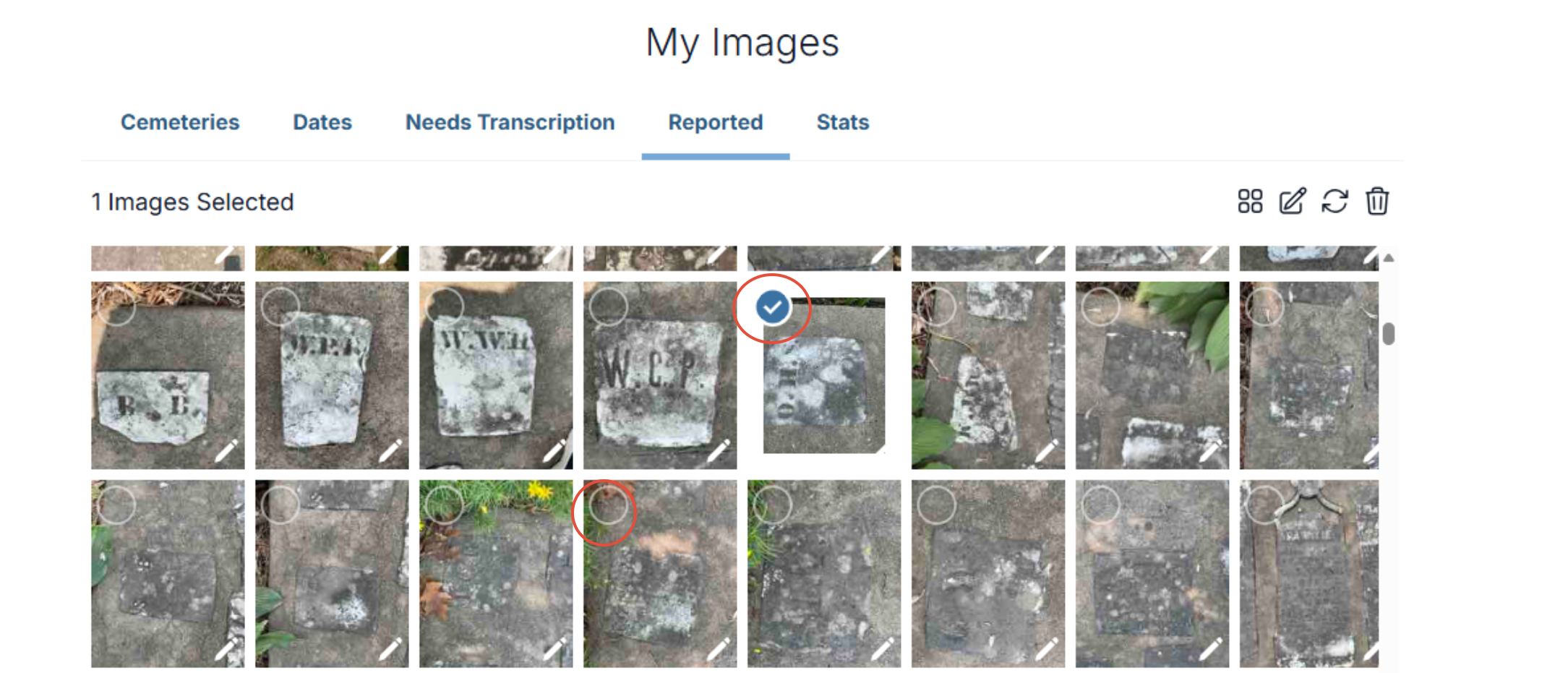
Step 6: A pop-up will appear on the right-hand side of the page. Each of these symbols will do different things.

 Multiple Boxes
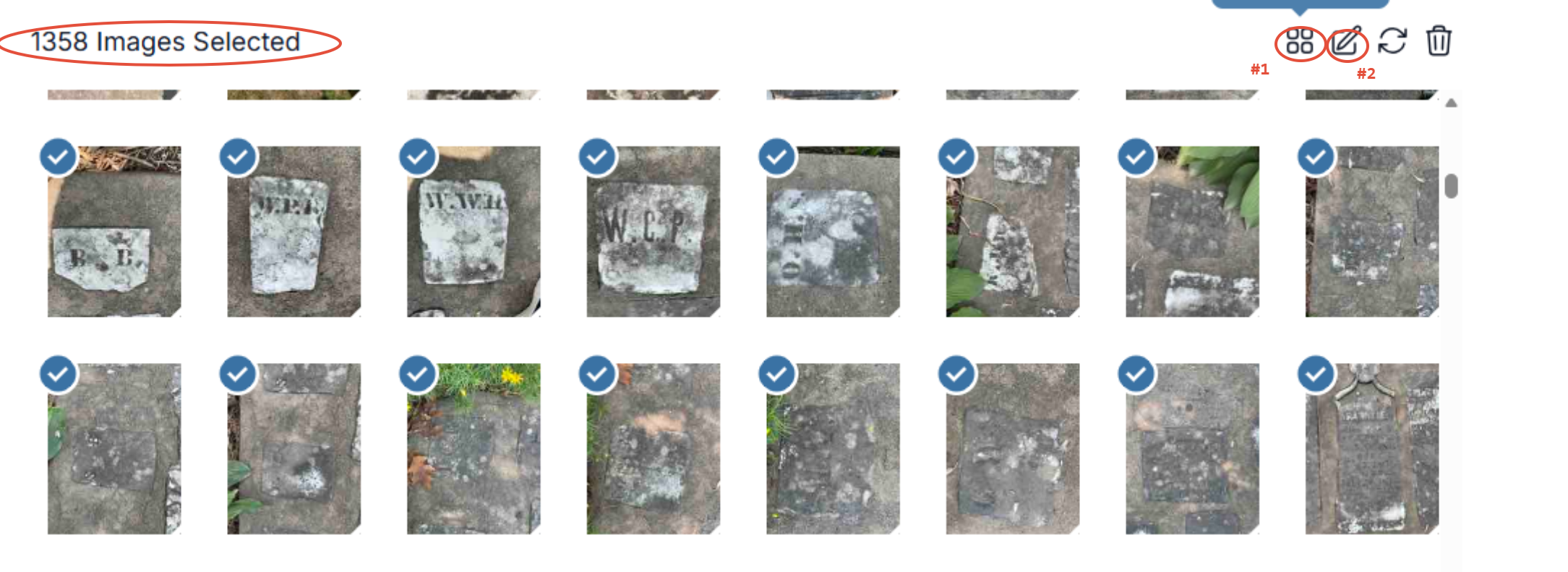
This will allow you to select all photos to load your own photo queue. When this is selected all the boxes will now have a blue check mark.

Pencil
Once the blue check marks are created, this will load your transcription queue.

Swirl
This recalculates the cemetery. If any photos have been attributed to the wrong place, this will attempt to fix the problem.

Garbage Can
Be careful with this one! If you checkmark photos and click on this it will delete the photos that are check markeded. We can't recover these once they are removed.
Step 7: We clicked on the multiple boxes function and chose all of the photos to load our queue. We then click on the pencil to load the queue. Now we have a personalized photo queue!